How to Export Tags
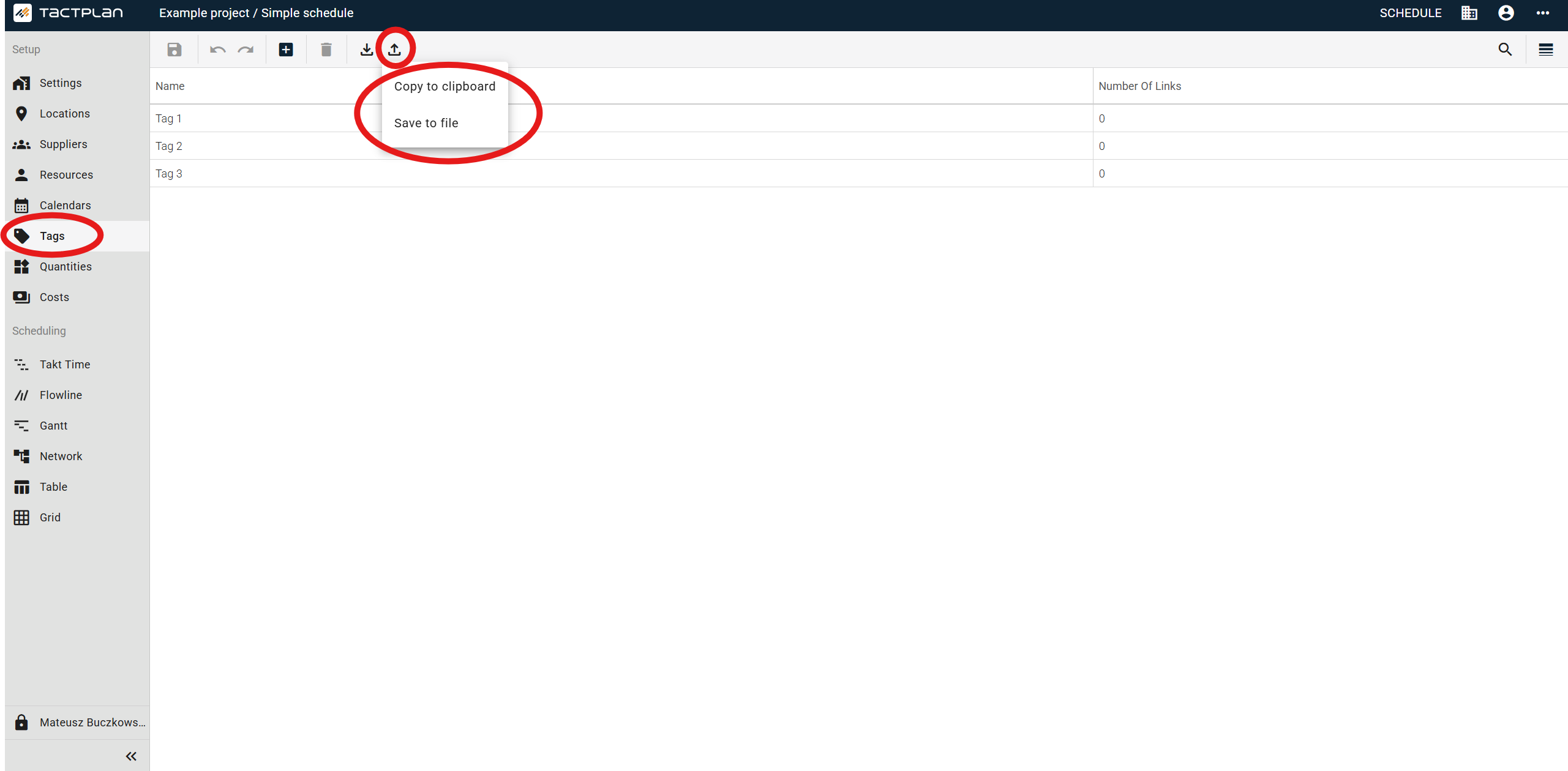
- Navigate to Setup in the left-hand side navigation and select Tags.
- Click the Export button in the toolbar.
- Choose one of the following options:
-
Copy to clipboard — copies the data so you can paste it directly into a spreadsheet (e.g. Excel or Google Sheets) using Ctrl + V.
-
Save to file — downloads a CSV file to your browser's default Downloads folder, which you can then open or import in a spreadsheet application.
How to Import Tags
- Navigate to Setup in the left-hand side navigation and select Tags.
- Export your existing tags first by clicking Export > Copy to clipboard. This gives you a correctly formatted template to work from.
- Open your spreadsheet application, paste the data, and make your changes.
- Copy the updated data to your clipboard.
- Back in Tactplan, click the Import button in the toolbar. The import dialog opens.
- Paste your data into the dialog by clicking Click here or using Ctrl + V.
- Review the data preview to verify it looks correct. Switch to Raw data to compare the source data with what will be imported.
- Click Import to apply the changes.
Data validation rules
| Field |
Requirement |
| ID |
Must match an existing tag ID. Non-existing IDs are invalid. |
| Name |
Name is required. Leaving this field empty will result in a validation error. |
| Number of Links |
This column is informational only and is ignored during both export and import. |
Tip: Use the Raw data view to catch any formatting issues before committing to the import.
Tactplan Schedule - Plans_Setup - Tags - Import and Export (2.4.2)